You're running Google and Meta ads. And you stumble onto weird stuff in your URLs: ?gclid=Cj0K..., ?fbclid=IwAR....
Don't panic. These are click identifiers, and they have a precise job. Here's how not to mix everything up with your UTMs.
What gclid and fbclid are
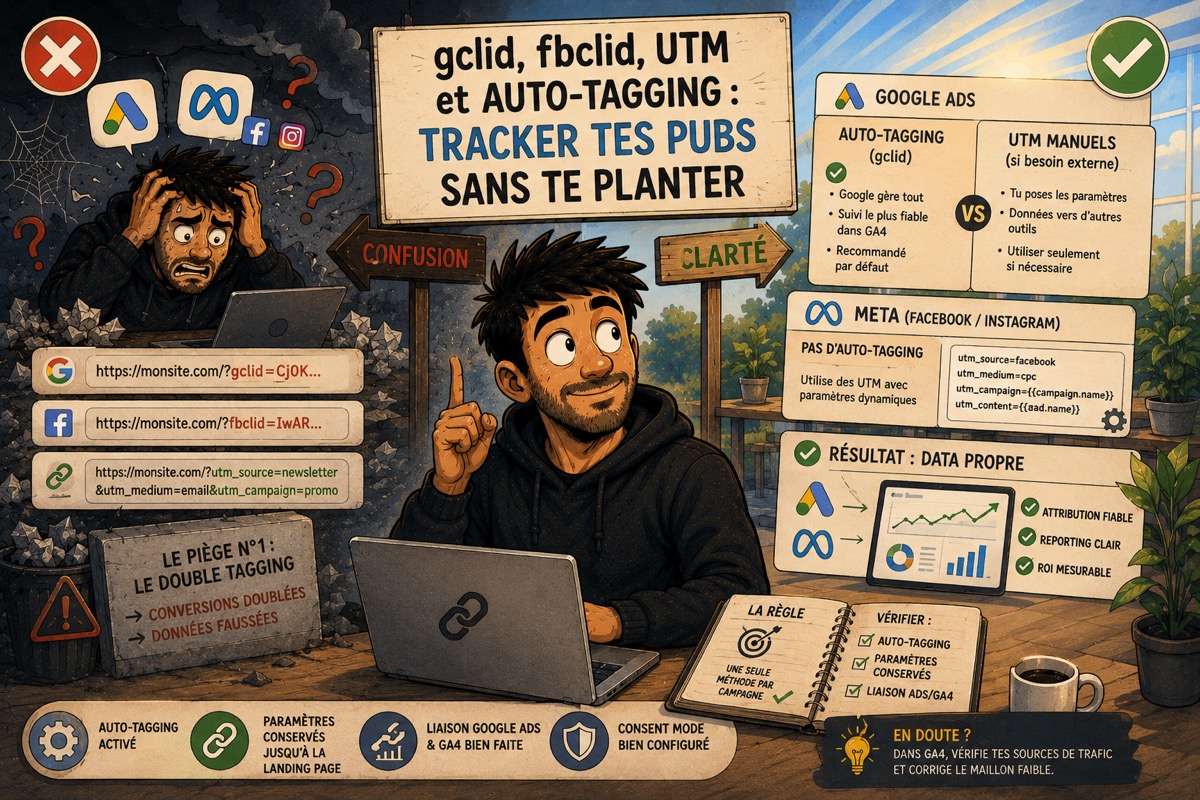
- gclid: the identifier that Google Ads automatically sticks onto your links when auto-tagging is enabled. It ties each click to the exact campaign, ad and keyword.
- fbclid: the equivalent on the Meta side (Facebook / Instagram).
Key difference with UTMs: UTMs are readable (you write utm_source=newsletter), whereas gclid and fbclid are opaque codes meant for the platforms, not for you.
Auto-tagging vs manual UTMs (Google)
On Google Ads, you have two options:
- Auto-tagging (gclid): Google handles everything, and this is what gives you the most reliable conversion tracking in Google Analytics. It's the recommended default setting.
- Manual UTMs: you set
utm_source,utm_medium, etc. yourself. Useful if you send your data to tools other than GA, which don't understand gclid.
| Auto-tagging (gclid) | Manual UTMs | |
|---|---|---|
| Who sets the parameters | Google, automatically | You, by hand |
| Tracking in Google Analytics | The most reliable | Fine |
| Data to other tools | No | Yes |
| Recommended if | You live in GA | You use other tools |
Pitfall #1: double tagging
The classic mistake: enabling auto-tagging and adding manual UTMs on top, with no method.
Possible result: conversions counted twice, or UTMs that override gclid and break your attribution.
The rule:
- If you live in Google Analytics: auto-tagging alone, no UTMs on top.
- If you need readable UTMs elsewhere: set consistent UTMs, and check the "override values" setting on the GA side to avoid conflicts.
When in doubt, one single method per campaign. Never both blindly.
On the Meta side: dynamic parameters
Meta doesn't do Google-style auto-tagging. So you set your UTMs, but you can make them automatic with variables:
utm_source=facebookutm_medium=cpcutm_campaign={{campaign.name}}utm_content={{ad.name}}
Meta replaces the {{...}} with the real names. You tag once, and each campaign/creative names itself. It's the right compromise between readability and automation.
Why your ad sometimes shows up as "direct"
It happens a lot and it drives you nuts: you pay for clicks, and GA4 files them under "direct" or "organic". The classic causes:
- Auto-tagging disabled and no UTMs: no info, so "direct".
- A redirect or a landing page that drops the parameters.
- Consent Mode: without consent, part of the tracking is throttled.
Things to check in order: auto-tagging enabled, a landing page that keeps the parameters, and a proper Google Ads / Analytics link.
In short for a consultant in a hurry
- Google: auto-tagging by default, UTMs only if you have an external need, never both without a method.
- Meta: UTMs with dynamic parameters.
- Always check that the landing page doesn't eat the parameters.
- If paid traffic lands under "direct", it's almost always one of these three points.